19 Ways to Simplify Your Digital Life
You don’t need to move to a cabin with zero Wi‑Fi to simplify your digital life. Start small—delete apps you haven’t opened in months, quiet those chaotic notifications, and give your home screen a calm, simple layout. Clean your inbox with filters and one‑click unsubscribes, tighten privacy settings, and try short tech‑free pockets in your day (yes, even five minutes counts). Then, add a monthly “digital reset” ritual and see what else becomes possible.
What you will leave with
- Audit your devices and accounts regularly, deleting unused apps, files, and logins to reduce clutter and improve privacy.
- Tame notifications by silencing non-essential alerts and checking messages in planned batches instead of reacting instantly.
- Organize files and email with simple folder structures, filters, and one-click unsubscribes to keep inboxes and storage manageable.
- Curate social media and content subscriptions by limiting platforms, unfollowing draining accounts, and canceling rarely-used services.
- Schedule recurring tech-free times and monthly digital resets to break habits, protect focus, and create healthier screen-time boundaries.
Audit and Declutter Your Devices Regularly

Even if your phone and laptop look fine on the outside, the inside can feel like a junk drawer exploded. You’re not alone—most people spend more time cleaning their kitchen than their camera roll, which is both funny and terrifying. Start with a simple device inventory, listing every gadget, account, and storage spot you use—phone, laptop, old tablet, email, cloud drives. When you actually see it all written out, it’s easier to notice what’s junk, what’s important, and what’s secretly stressing you out. You can make faster choices about what to delete by applying simple if-then rules to your files and apps (for example, “If I haven’t opened this app in six months, I remove it”). Then, delete unused apps, old downloads, and mystery files, and review accounts you don’t log into anymore—this boosts storage and digital privacy. Schedule a quick weekly check‑in, like a 15‑minute “tech tidy,” so clutter never piles up again.
Design a Minimalist Home Screen and App Layout

Some days, does your home screen feel like a messy bedroom where every app is yelling for attention at once?
Let’s quiet it down.
Start with layout symmetry—rows that line up, folders that actually make sense, icons that don’t zigzag like a squirrel on espresso.
Use minimalist icons and strategic spacing so each app has breathing room, and let negative space (those calm blank areas) guide your eyes to what matters most.
Next, play with typography choices and color harmony.
Pick one clean sans serif font, two or three calm colors, then one bold accent for important stuff only.
That creates visual hierarchy—your brain sees what’s important first, without a wrestling match.
Result: fewer distractions, faster tapping, way less “Where the heck is my calendar?”
Treat this clean layout as a daily reminder to practice clearing mental clutter, so your screen only holds what truly deserves your attention.
Consolidate Redundant Apps and Accounts

When your phone starts to feel like a junk drawer of “sorta the same” apps and random logins, it’s time for a clean‑out.
When your phone turns into a junk drawer of duplicate apps and lost logins, it’s time to declutter
Open your app list, sort by “last used,” then delete copies—three banking apps, four note apps, six weather apps (you only need one sky).
Use simple app integration strategies: pick tools that combine features, like a money app that handles budgeting, payments, and savings, or a chat app that also does calls and file sharing.
Next, tackle accounts.
Search your email for “welcome” and “verify,” then list services where you’ve joined twice.
Use built‑in account merging techniques, turn on Single Sign‑On when it’s offered, and let a password manager track what’s left—clean, clear, manageable.
Streamline Notifications for Focus and Calm

Although your phone tries to act helpful, a day full of dings, pings, and pop‑ups can feel like digital whiplash.
You’re not broken if you can’t focus—no one can think clearly with 100+ alerts yelling for attention.
So, start with simple notification prioritization strategies. Ask, “Who and what truly needs to reach me right away?” Keep calls, maybe texts, and calendar reminders—silence the rest. Social apps, games, random shopping deals—they can wait. Cleaning up your notifications also reduces exposure to manipulative dark patterns and urgency‑driven marketing that push impulse spending.
Next, flip from reacting to proactive engagement techniques. Instead of jumping at every buzz, check messages in set batches—maybe late morning and late afternoon—so your brain can relax, knowing you’ll get to everything.
Result: fewer interruptions, less anxiety, longer focus, more calm.
Create Simple, Shared Cloud Storage Systems
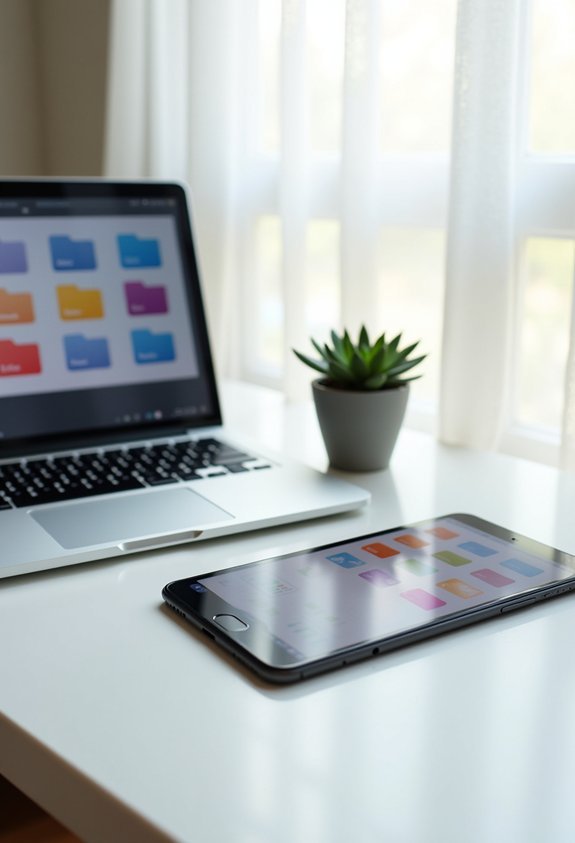
Anyone who’s ever tried to find “that one file” in a sea of random folders knows the pain.
You can fix that by building one simple family storage hub in the cloud—no more “Is it on your laptop or mine?” arguments.
Try this:
- Pick a service with strong security features and friendly pricing models—Sync.com, Google Drive, OneDrive, or a pCloud lifetime plan all work.
- Use clear shared folders (Bills, School, Photos), then turn on collaborative tools like real-time editing and file versioning, so no one “accidentally” ruins the budget.
- Check integration capabilities—make sure it syncs across everyone’s phones, tablets, and laptops without weird tech drama.
- Tighten sharing controls with passwords, link expiration dates, and multi-factor logins, so relatives see photos—not your tax returns.
Automate Routine Tasks With Built-In Tools and AI
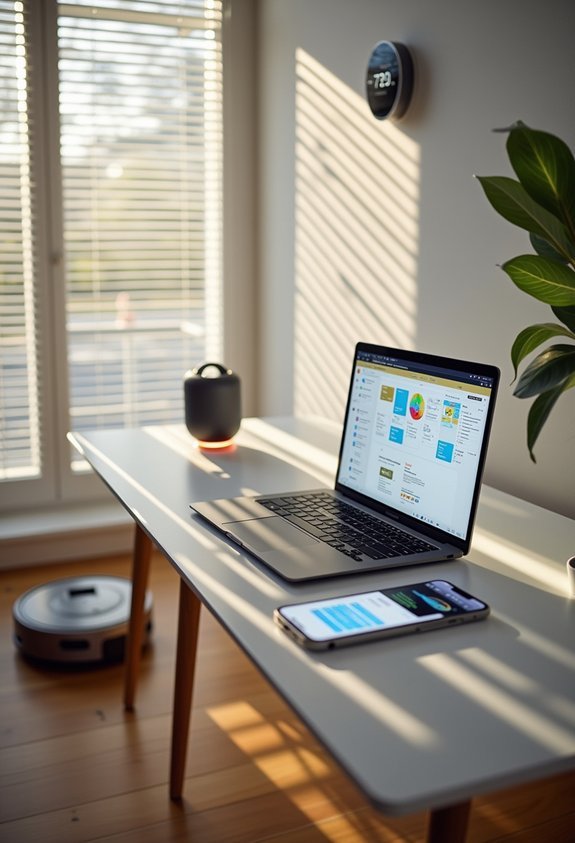
Start small. Use built‑in reminders to auto‑schedule chores, set email filters to sort newsletters, and create rules that rename and file downloads—tiny Workflow Efficiency tricks that add up.
Then, layer in Intelligent Automation for real Routine Simplification. With AI Integration and RPA Benefits, you can auto‑capture receipts, log expenses, and draft replies, giving you a serious Productivity Boost and calmer brain.
You’re not “cheating” by using Process Streamlining and Digital Transformation. You’re just not doing robot work by hand anymore.
Use Password Managers to Tame Login Chaos
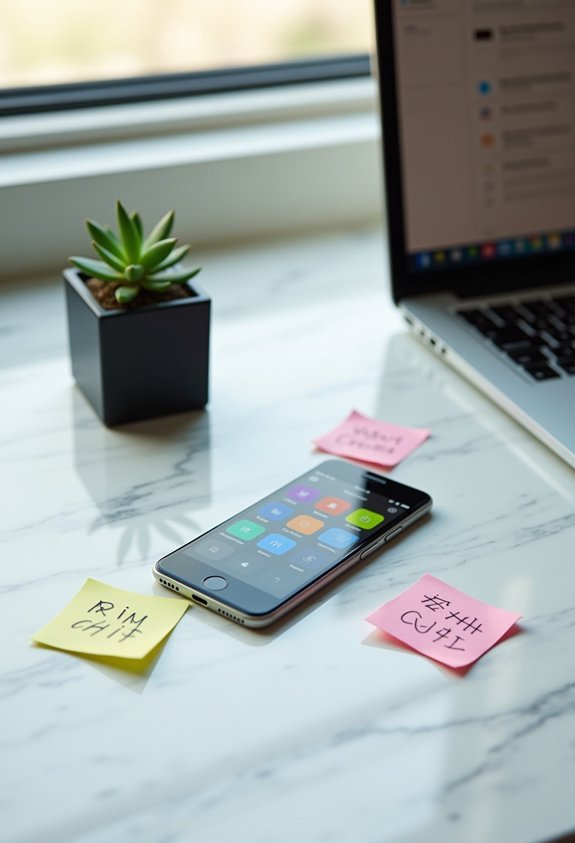
You’ve set your chores and emails on autopilot—now let’s fix the mess that hits you every time a login screen pops up. Instead of dumping passwords in your brain (or that sad sticky note), let a manager handle password security, vault management, and password recovery for you.
Stop memorizing logins—hand the chaos to a password manager and let it guard everything for you
Here’s how it helps tame the chaos:
- It locks everything with strong encryption standards, two factor authentication, and even phishing-safe autofill—far safer than your browser.
- It boosts user convenience with password generators, passwordless unlock, and quick breach alerts when something smells sketchy.
- It offers password sharing that’s actually controlled—great for streaming services, not so great for exes.
- It adds dark web monitoring and legacy access, so both you and trusted people stay covered.
Standardize Your Digital File Naming and Folders
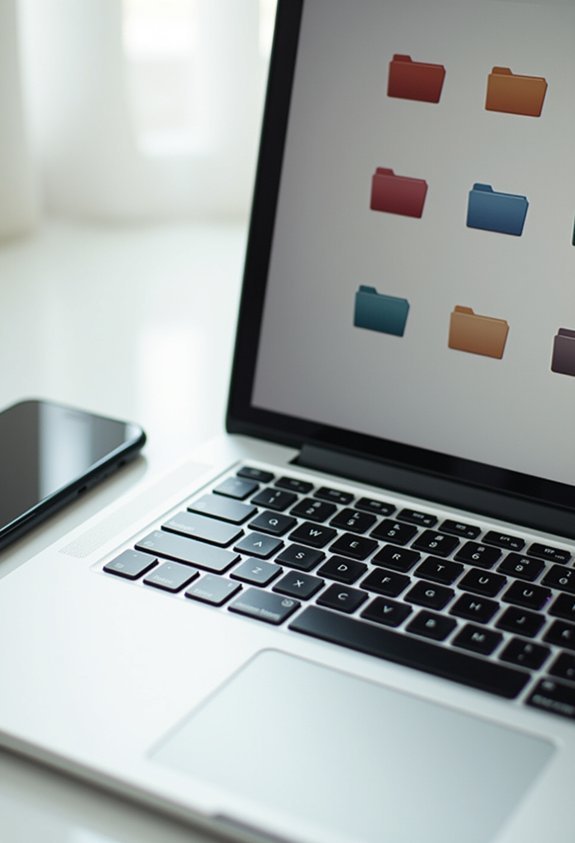
One hard truth about digital life: if your files are chaos, your brain feels like chaos too. Good news—you can fix that with simple file organization and clear naming conventions, not more apps or fancy hacks.
Start with broad folders—like “Finance,” “School,” “Photos”—then add calm little subfolders: Finance > Invoices > 2025. Don’t cram every detail into folder names, let the file names do the talking.
Use short, clear names: `Invoice_2025-03-04_001.pdf` beats `newnewfinalREALLYFINAL.pdf` (we’ve all done it). Dates in `YYYY-MM-DD`, numbers with 001, 002, and no weird symbols.
Then, let tools help—batch renamers, AI taggers, even OCR for scans—so your system stays clean while you actually do real work.
Optimize Email With Filters, Rules, and Unsubscribes
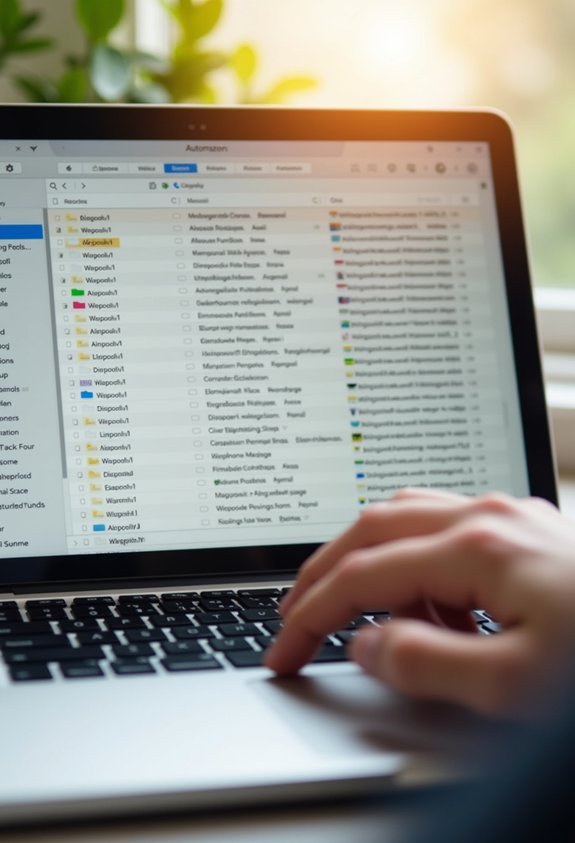
Even though your inbox can feel like a fire hose aimed at your face, you don’t need more willpower—you need a smarter system.
Think “email sorting” and “inbox organization,” not endless scrolling and sighing.
Try this:
- Set filters so newsletters, promos, and receipts skip your main inbox—let them land in tidy folders, ready when you are.
- Add rules that auto‑file, star, or forward key emails, so important stuff never hides under “50% OFF!!!” nonsense.
- Use one‑click unsubscribe on anything you skip three times in a row—your future self will want to hug you.
- Mark VIP senders—boss, partner, kid’s school—so their emails jump to the top, even on your busiest days.
Rationalize Your Social Media Presence

Email isn’t the only thing yelling for your attention—social media is in the corner, waving its arms and shouting, “Look at me!” all day long.
Start with a quick audit—list every account, even that random app you only joined for coupons.
Then choose your “main three” that actually match your goals (friends, career, fun), and delete or deactivate the rest, so you’re not juggling seven half-dead profiles.
Next, do some social media curation: unfollow people who drain you, mute the “nice but loud” ones, and keep the voices that teach, inspire, or truly know you.
Finally, practice digital privacy management—tighten privacy settings, kill extra tracking, and share less, so your life feels lighter and safer.
Set Clear Boundaries With Screen Time Controls

Although your phone swears it’s “just keeping you informed,” it acts more like a toddler with a foghorn and no bedtime.
Your screen’s not a tool, it’s a hyperactive roommate who never learned the concept of “later.”
You’re not weak for struggling with screen time management — your devices are literally designed to win.
Still, you’ve got options. Simple ones.
1. Turn on built‑in controls.
Use iOS Screen Time or Android’s tools to set daily limits, see honest usage reports, and gently block “just one more video.”
2. Schedule downtime.
Create no‑screen blocks—like one hour before bed—protecting sleep, mood, and your digital wellness.
3. Make screen‑free zones.
Keep phones out of bedrooms and dining areas, so you’re not doom‑scrolling between bites.
4. Tame notifications.
Silence non‑essential alerts; if it’s not life‑or‑death, it can wait.
Adopt a Single Calendar for All Life Domains

When your life lives in five different calendars, it’s like hosting a party and forgetting who you invited where. One single, synced calendar integration pulls school, work, kids, health—everything—into one view, boosting scheduling efficiency and giving you instant resource visibility. You see real gaps, plan errands between meetings, and slide in rest on purpose—hello burnout reduction and actual weekends. With clear task prioritization, you stop double-booking, stop apologizing, and get a real productivity boost from simple time management, not heroic multitasking. Use one calendar to chunk big goals into tiny steps, then let reminders act as gentle commitment reinforcement. By regularly reviewing your unified calendar, you can practice present-moment awareness and reduce the tendency to drift through your days on autopilot. Shared calendars communication streamline plans with partners or teams, while flexible planning keeps you ready for curveballs—without chaos.
Simplify Streaming and Digital Subscriptions
Ever notice how streaming can feel less like “relax and watch a show” and more like “manage a small media empire”? You’re not alone—most households juggle multiple services, rising prices, and way too many apps. Just like deleting shopping apps reduces frictionless spending, routinely pruning your streaming services lowers mental clutter and makes it easier to be intentional about what you watch.
- Do a quick subscription audit. Once a month, list every streaming service, circle the ones you barely touch, then cancel or pause them—remember, “maybe someday” shows don’t need a monthly fee.
- Lean on streaming bundles. Pick one bundle (like Disney+/Hulu/ESPN+), instead of three separate bills, so you cut costs and logins.
- Use free and ad‑supported options. FAST channels like Pluto or Tubi are great for background TV, budget‑style.
- Try ethical account sharing. Use family plans—legal sharing, fewer bills, less chaos.
Curate Your News and Content Feeds Intentionally

You’ve tamed your streaming a bit, but there’s another quiet chaos-maker in your digital life—your news and content feeds.
Your news feed is the next quiet chaos-maker—time to calm the constant scroll.
Right now, they probably feel like a loud mall food court, with every stand shouting at once, so start by listing topics you truly care about—health, tech, local news, hobbies—and unfollow everything else without guilt.
Use content discovery tools like Feedly, Flipboard, or Google Alerts to pull trusted sources into one calm dashboard, then lean on AI filters, RSS feeds, and alerts so new stories come to you (not the other way around).
Do a little audience segmentation—even if the “audience” is just you—by building small folders (work, fun, learning), then check metrics and prune anything you always scroll past.
This is how you turn your feeds from a firehose into a designed system, where each source has a clear job and anything that doesn’t support your values gets quietly removed.
Leverage Cross-Platform Ecosystems Wisely
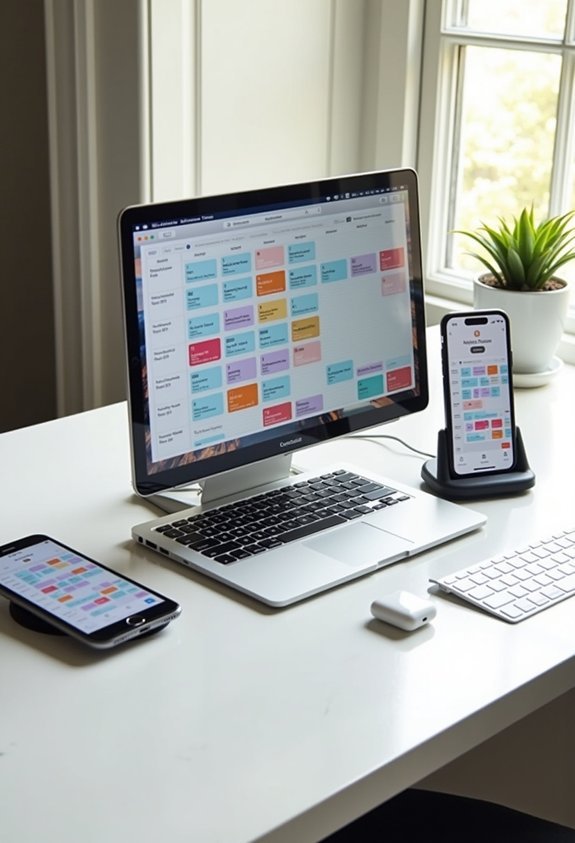
Even if your digital life feels like a pile of tangled chargers, cross‑platform tools can quietly clean a lot of it up.
When your apps, games, and notes follow you everywhere, you stop wasting time chasing files—and start actually using them.
Here’s how to use cross platform benefits without drowning in options:
- Pick one main ecosystem for notes, passwords, photos, and projects (fewer logins, fewer “where did that go?” moments).
- Choose apps with cross‑progression—your game saves, reading lists, and workouts stay synced, which boosts user engagement naturally.
- Look for tools that feel the same on phone, tablet, and laptop, so your brain doesn’t keep relearning buttons.
- Regularly delete duplicate apps that do the same job, keeping only the most reliable cross‑platform choice.
Protect Your Attention With Focus Modes and Do Not Disturb

Although your phone is an amazing little miracle box, it’s also a tiny chaos gremlin begging for your attention. You need real focus strategies, not just “try harder,” because digital distractions hit your brain like pop-up ads—loud, constant, and oddly tempting. Start with simple notification management: turn on Do Not Disturb for work blocks, let only key people through, and batch everything else. That’s attention control in action—less task-switching, better cognitive performance, and way more mental clarity. Use Work Focus for deep tasks, Personal Focus for evenings, maybe a custom “Reading” mode—each one supports task prioritization and quiet productivity enhancement. You’re not “bad at focusing.” Your settings are just… untrained. Time to fix that. And when you combine these focus modes with a quick daily five-minute check-in, you protect your attention while calming the nervous system that overload and constant pings keep activating.
Clean Up Your Digital Footprint and Old Data
At some point, your digital life quietly turned into a messy attic—old accounts, cringey posts, weird newsletters, and apps you don’t remember installing.
That mess isn’t just annoying—it builds a huge digital footprint that quietly follows you around, shaping ads, job impressions, even scams.
Let’s turn panic into a plan, using simple digital privacy and data management habits:
- List old accounts (social media, forums, stores), then delete or deactivate anything you don’t use.
- Search your name, remove embarrassing posts and photos, and ask sites to delete outdated info.
- Clear browser history, cookies, and app permissions—those silent trackers love to over-share.
- Tighten privacy settings, use strong passwords and two-factor login, and repeat this cleanup every few months.
Design Tech-Free Moments in Your Daily Routine

Some days it feels like your phone owns you, not the other way around, right? So, give yourself tech-free moments—on purpose.
Some days it feels like your phone owns you—reclaim tiny tech-free pockets just for yourself
Start tiny: 15 minutes in the morning with no screens, just coffee, quiet, maybe staring at a wall (oddly peaceful). That’s where the real tech free benefits begin. Even a short, intentional break from screens can act like a mini digital sabbath, giving your nervous system a chance to reset.
Pick set blocks—during breakfast, on your commute, an hour before bed—and park your phone in another room. Use “Do Not Disturb,” remove tempting apps, and log out of social media, so you’re not pulled back in every five seconds.
Then fill that space on purpose: walks, real talks, reading a paper book, drawing badly, stretching on the floor.
Mindful engagement, not mindless scrolling. It’s you, taking your day back.
Create a Monthly Digital Reset Ritual

You’ve started building little tech-free pockets into your day—now let’s zoom out and give your whole month a reset button.
Think of it as hitting “refresh” on your brain instead of your browser.
Pick one weekend day each month, name it your “Digital Reset,” and protect it like a holiday. You’re not quitting tech forever—you’re testing new digital habits and more mindful usage.
Here’s a simple flow:
You may also like:





- Choose targets (social media, gaming, late‑night scrolling) and set clear limits.
- Tell friends, download offline stuff, plan walks, books, or puzzles.
- Go 24–72 hours without those apps—no “just checking”—and notice sleep, mood, and focus.
- Afterward, jot quick notes, tweak next month’s reset, and keep one new boundary.
In case you were wondering
How Can I Reduce Digital Eye Strain and Physical Discomfort From Constant Screen Use?
You reduce digital eye strain and physical discomfort by using an ergonomic setup, adjusting lighting and brightness, following the 20-20-20 rule, blinking often, limiting blue light at night, and taking posture breaks with stretching.
What Are Effective Strategies for Managing Kids’ Digital Habits and Online Safety?
You steer their digital ship by setting clear screen time limits, talking often about online safety, using parental controls, co-viewing content, modeling balanced tech use, scheduling offline activities, and revisiting rules together as they mature.
How Do I Balance Digital Convenience With Concerns About Data Privacy and Surveillance?
You balance it by deciding where convenience’s worth the risk: tighten privacy settings, enable data encryption, minimize app permissions, use strong passwords and MFA, limit social media, prefer trusted services, and review what’s tracked or stored regularly.
What Steps Help Prevent Digital Burnout While Working Remotely or Hybrid?
You prevent digital burnout by setting firm workflow boundaries, scheduling regular digital detox breaks, turning off notifications after hours, limiting meetings, using asynchronous tools, protecting focus blocks, taking real days off, and requesting mental-health and flexibility support.
How Can I Support Less Tech-Savvy Family Members in Simplifying Their Digital Lives?
You support them by becoming a gentle tech compass: offer brief tech tutorials, handle initial device setup, create written step‑by‑steps, prioritize just essential apps, schedule calm practice sessions, and revisit settings regularly so everything stays simple and stress‑free.
Conclusion
You don’t have to fix your whole digital life in one wild weekend—tiny tweaks today still totally count.
Start small: silence three noisy apps, clean one chaotic folder, clear five old photos that spark zero joy.
Think “calm, clear, controlled” instead of “busy, buzzing, brain-fried”—that simple shift really helps when screens scream for attention.
And when you slip (doom-scroll till 1 a.m., again), just reset, laugh, and tap back into your new, simpler system.